Summary
When a Microsoft 365 user has both a work/school account and a personal account registered under the same email address, the Nylas OAuth authentication flow may connect to the wrong Microsoft account. This results in emails not syncing, emails being misattributed to other users, or emails missing entirely from the integrated application.
Root Cause
Microsoft allows a single email address to be associated with two separate accounts: a work or school account (managed via Entra ID / Azure AD) and a personal Microsoft account. During OAuth authentication via Microsoft Graph, both accounts may be presented to the user — or the API may resolve to the wrong one automatically.
When Nylas authenticates via Microsoft Graph and the wrong account is selected (or auto-resolved), the resulting grant is linked to the personal account, which does not contain the user's organizational mailbox data. This causes sync to either fail silently or return incomplete/incorrect data.
This scenario is more likely to occur after:
- A Microsoft data center incident that corrupts Entra ID endpoints
- An IT administrator resets or reconfigures user accounts
- Any event that forces users to re-authenticate their email integration
Diagnosis
- Check the Nylas grant status: Look up the user's grant ID in the Nylas Dashboard. Confirm whether the grant is actively syncing messages. If the grant shows no message sync activity or not the expected messages, this is a strong indicator of wrong-account mapping.
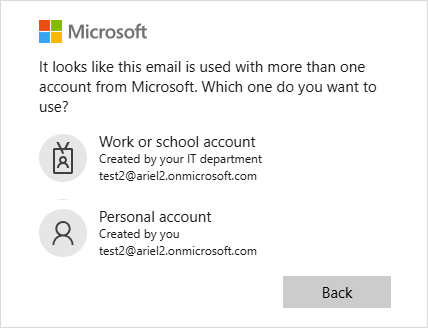
- Check for duplicate Microsoft accounts: Have the user navigate to outlook.com and observe the account picker. If two accounts appear under the same email address (one labeled "Work or school" and one labeled "Personal"), this confirms the duplicate account condition.
Resolution
Step 1: Revoke the Existing Grant
- From the client application's admin panel (or via the Nylas Dashboard/API), revoke/delete the affected user's email grant.
- Note: This will temporarily remove synced emails from the client application. They will return once the correct account is reconnected and sync completes.
Step 2: Pre-authenticate with the Correct Microsoft Account
- Have the affected user open a browser and navigate to outlook.com.
-
If the Microsoft account picker appears, ensure the user signs into the expected account (Personal/Work or school )
- This populates the browser's session cache with the correct account context.
After authenticated, please ensure you are indeed conected to the correct account.
Step 3: Re-authenticate Through the Client Application
- Return to the client application that use Nylas authentication and initiate the email connection/authentication flow.
- The OAuth flow should now pick up the correct (work/school) account from the browser session.
- Confirm the new grant ID is created and actively syncing.
Step 4: Verify Sync
- Check the new grant in the Nylas Dashboard to confirm message sync is active.
Updated
Comments
0 comments
Please sign in to leave a comment.